
1
Order and delivery updates
Tell customers when an order is confirmed, delayed, ready, shipped, or needs action.
Turn order updates, appointment changes, service events, and customer requests into automatic text messages from your business number.
Quick answer
An SMS notification connects an event in a business app to a short text for a customer or team member. VoxiSMS sends it through the Android phone and number your business already uses.
Use these examples as starting points, then replace the placeholders with the details and next step that fit your workflow.
| Use case | Trigger | Message structure | Response route |
|---|---|---|---|
| Service outage | A customer-facing service fails its health check | [Service] is unavailable at [time]. Owner: [team]. Check [approved destination]. | IT team or affected staff |
| Threshold breach | Temperature, capacity, stock, or queue depth crosses an approved limit | [Location]: [signal] reached [value]. Inspect [asset] and record the response. | Facilities or operations owner |
| Failed automation | A business workflow ends in a confirmed error state | [Workflow] failed for [record]. Retry only after checking [reason or log]. | Person responsible for the workflow |
| Order exception | An order is delayed, held, or missing a required field | [Order] needs review: [exception]. Owner: [team]. Next step: [action]. | Fulfilment or customer support |
| Appointment change | A booking is cancelled, moved, or reaches a reminder window | [Business]: Your appointment is now [status] for [date/time]. [Next action]. | Recipient and scheduling workflow |
| Customer status update | A ticket or service request changes to a customer-relevant state | [Business]: Request [reference] is now [status]. Reply or call [number] for help. | Customer, with a staffed reply path |
Start with an event your business already tracks. The same setup can keep customers informed, help teams respond to new work, and move routine updates out of manual phone calls.
See how to connect a workflowTell customers when an order is confirmed, delayed, ready, shipped, or needs action.
Send confirmations, reminders, rescheduling notices, and cancellations from the business number.
Let customers know when a request is received, assigned, updated, or completed.
Text the right team when a location, system, stock level, or business process needs attention.
Notify a salesperson when a new form submission or enquiry arrives so they can respond sooner.
Send a reminder when an invoice, payment, renewal, or account step is due.
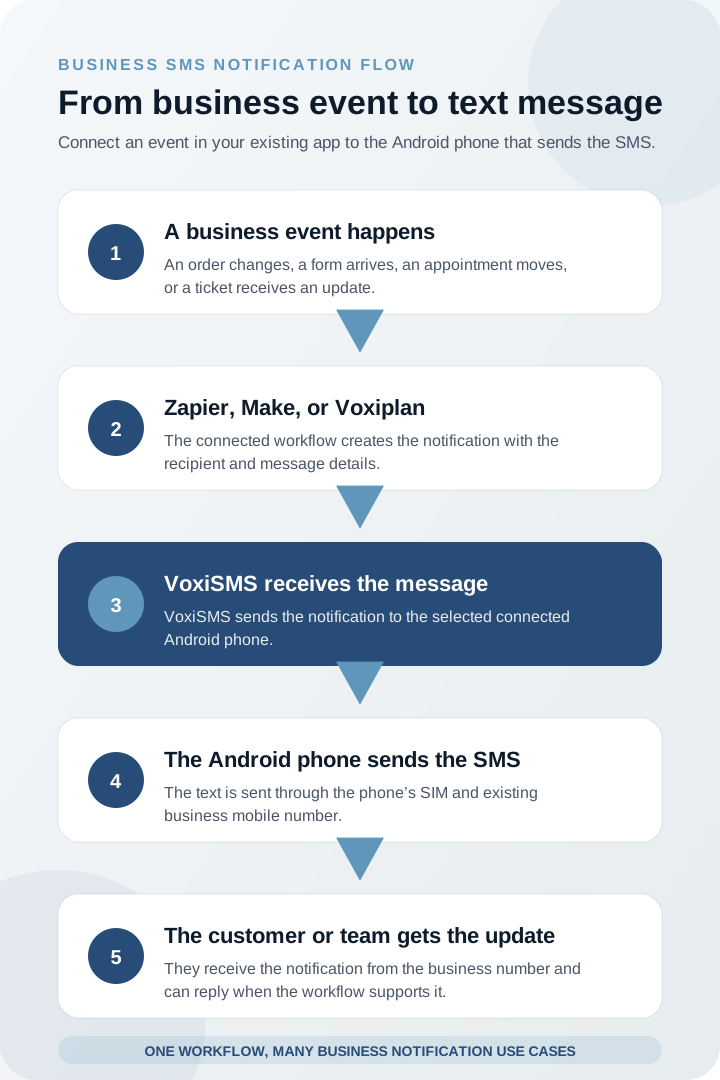
An order changes, an appointment moves, a form arrives, a ticket is updated, or a business system needs someone’s attention. Zapier, Make, or Voxiplan creates the message and passes it to VoxiSMS.
VoxiSMS queues the notification for the selected Android phone. The phone sends it through its SIM and mobile number, so the recipient sees the same number your business already uses.
Keep working in the apps your team already uses. VoxiSMS handles the final step: sending the text from your connected business phone.
Choose the integration that already receives the order, appointment, form, ticket, or business event you want to turn into a text.
A straightforward app event followed by an SMS action
Connect form submissions, orders, tickets, CRM updates, and monitoring apps to a VoxiSMS SMS action.
Explore the VoxiSMS Zapier integrationVisual scenarios with filters, branches, and multiple response paths
Build scenarios for order updates, team notifications, customer messages, and other multi-step workflows.
Explore the VoxiSMS Make integrationAppointment confirmations, reminders, changes, and reply routing
Keep appointment logic in Voxiplan and use VoxiSMS as the Android delivery layer for the connected real mobile number.
Explore the VoxiSMS Voxiplan integration
VoxiSMS uses the Android phone, SIM, and mobile number your business already has. Customers and staff receive the message from that number instead of a separate rented sender.
Start with an order update, appointment change, ticket update, staff alert, or customer follow-up.
Use the event in Zapier, Make, or Voxiplan that should send the message.
Include the business name, the update, and the clearest next step.
Choose the connected Android device and mobile number.
Run the workflow once and check the message and reply path.
Once the first notification works, repeat the same setup for another customer update, team message, or business event.
Direct answers about notification use cases, integrations, replies, and sending from your Android phone.
It connects a business event, such as an order update, appointment change, new lead, or service alert, to an automatic text message for a customer or team member.
Common use cases include appointment updates, order and delivery messages, ticket updates, lead alerts, payment reminders, staff notifications, and system or facilities alerts.
Yes. Zapier or Make supplies the trigger and message, then VoxiSMS sends it through the selected Android phone and SIM.
Yes. Voxiplan can create appointment confirmations, reminders, changes, and cancellations, while VoxiSMS sends them from the connected Android phone and business number.
Yes. Replies arrive on the connected number and can be forwarded into Zapier, Make, or Voxiplan workflows.
No. VoxiSMS does not add a per-message fee. The Android phone sends each message through the mobile plan already active on the device.
Choose a use case, connect Zapier, Make, or Voxiplan, and send the first message from your business number.