
Voxiplan
Native appointment scheduling and communications
Voxiplan supplies appointment logic; VoxiSMS supplies Android SMS delivery.
Check before launch
Reminder timing, reply mapping, and cancellation behavior
Write a reminder that makes the next action obvious, then connect it to a workflow that uses current appointment data, a tested reply path, and your own Android phone.

Quick answer
A useful reminder identifies the business, confirms the date and time, and gives the recipient a real way to confirm, cancel, or reschedule.
Use these examples as starting points. Replace every placeholder, offer only actions your workflow supports, and adapt the final wording to the recipient and service.
| Reminder moment | Example |
|---|---|
| Booking confirmation | [Business]: Your appointment is booked for [date] at [time]. Reply C to confirm or call [number] to change it. |
| 48-hour reminder | [Business] reminder: [service] on [date] at [time], [location]. Reply C to confirm or R to request a new time. |
| Same-day reminder | [Business]: We’ll see you today at [time]. Need to change your appointment? Call [number]. |
| Preparation reminder | [Business]: Reminder for [service] on [date] at [time]. Please [one essential preparation step]. Questions? Call [number]. |
| Reschedule request | [Business]: Your appointment on [date] at [time] needs a new time. Choose a time at [verified link] or call [number]. |
| Cancellation confirmation | [Business]: Your appointment for [date] at [time] is cancelled. To rebook, use [verified link] or call [number]. |
Put the business name first so the recipient understands who is texting. Add the date and local time, then include only the location or preparation detail needed for that appointment. Finish with one clear instruction.
If you offer reply choices such as C for confirm or R for reschedule, those replies must lead somewhere useful. A keyword that no workflow checks can leave a customer thinking the appointment changed when it did not. Avoid sensitive detail when a neutral reminder will do.
A practical starting point is one reminder 24 to 48 hours before the appointment. Add a booking confirmation when the appointment is created, and use a same-day reminder only where the service and customer behavior justify it.
A meta-analysis found no significant difference among 24-, 48-, and 72-plus-hour timing groups in the randomized trials it reviewed. Test by appointment type instead of copying a rigid cadence.
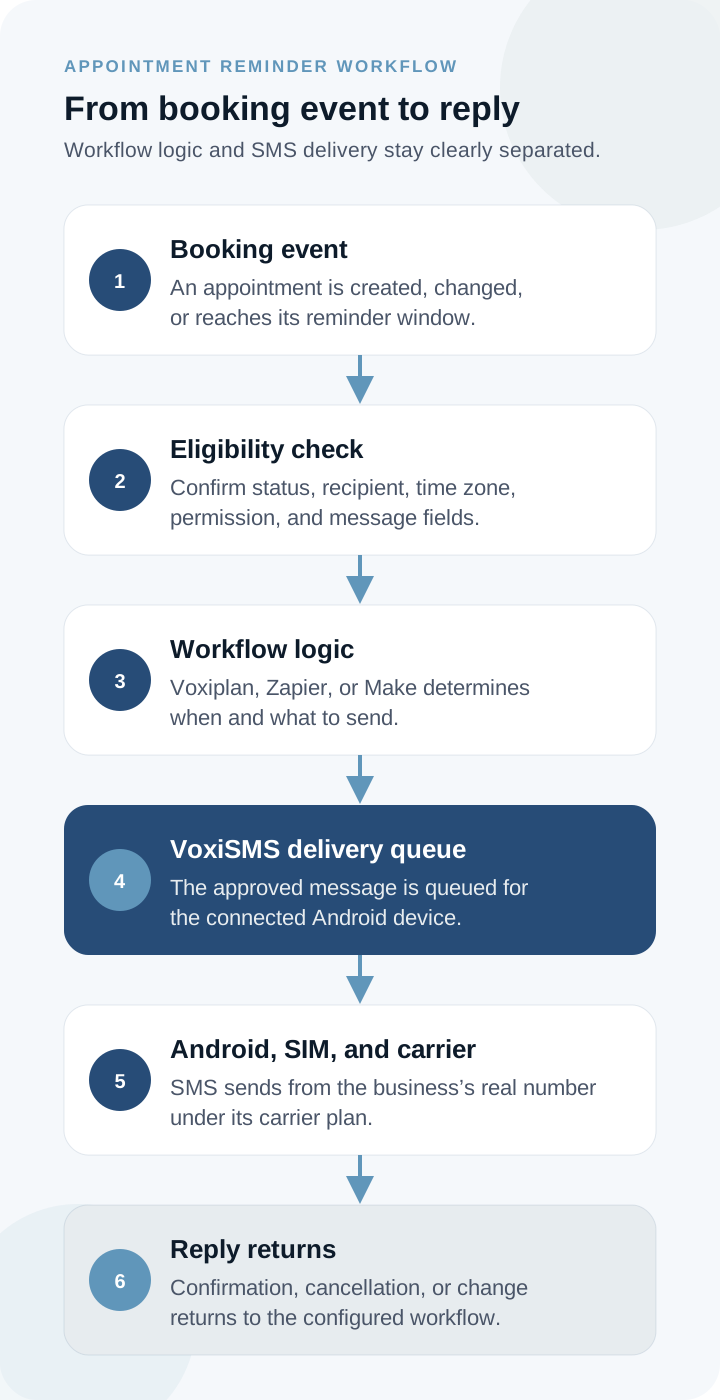
See the systematic reviewAn automated reminder is a short chain of decisions, not just a scheduled text. Keep workflow logic and SMS delivery as separate, testable responsibilities.
Keep the roles separate. VoxiSMS does not replace your calendar or booking system. It handles SMS delivery through the Android device; the connected platform decides when to send and what happens next.
Pick the workflow layer that matches the scheduling system you already use. Confirm the source trigger and fields before treating any booking product as connected.
Native appointment scheduling and communications
Voxiplan supplies appointment logic; VoxiSMS supplies Android SMS delivery.
Check before launch
Reminder timing, reply mapping, and cancellation behavior
Straightforward app trigger followed by an SMS action
Zapier connects a verified source-app trigger to VoxiSMS.
Check before launch
Source trigger, field mapping, duplicate prevention, and failures
Visual multi-step or branching scenarios
Make controls the scenario; VoxiSMS supplies Android SMS delivery.
Check before launch
Filters, time zones, retries, and reply routing
Keep one source of truth for appointment status. A cancellation should update it before the next reminder window. A reschedule should replace the old date instead of creating a second active reminder chain.
Sending through your own SIM does not remove consent, privacy, carrier, or local-law responsibilities. Keep records appropriate to the workflow, send only messages related to the purpose the recipient expects, and provide a working way to stop or change communications where required.
For US healthcare organizations, HHS says appointment reminders are part of treatment and can be made without a separate HIPAA authorization. That does not make an app, phone, or end-to-end workflow automatically HIPAA compliant. HHS also advises covered entities to limit disclosed information and accommodate reasonable confidential-communication requests.
Choose the booking, update, or reminder window that starts the workflow.
Check current status, phone number, time zone, and the permission or other lawful basis that applies.
Keep it specific, brief, and aligned with actions the workflow can process.
Confirm the correct SIM, number, carrier plan, signal, power, and app connection.
Create a test appointment, receive the reminder, and send the expected reply.
Try a cancellation, reschedule, opt-out, offline device, missing field, and repeated trigger.
Review delivery failures, queue health, carrier limits, replies, cancellations, and attendance.
Start with one reminder workflow. Add another appointment type or reminder moment only after the first path works reliably.
Direct answers about message content, timing, replies, healthcare safeguards, and sending from your Android phone.
Include the business name, appointment date and time, essential location or preparation detail, and one clear way to confirm or change the appointment. Do not offer reply actions that your workflow cannot process.
A practical starting point is 24 to 48 hours before the appointment. Measure results by appointment type and adjust for customer behavior, time zones, and cancellation lead time rather than assuming one cadence is best.
Replies can return through a configured Voxiplan, Zapier, or Make workflow. The next action depends on the integration and reply logic you set up, so test confirmations, cancellations, free-text replies, and opt-outs before launch.
HHS permits appointment reminders as treatment communications, but compliance depends on the full workflow, safeguards, message content, vendors, device handling, and the organization’s obligations. VoxiSMS does not make a workflow automatically HIPAA compliant.
VoxiSMS does not add a per-message fee. The Android phone sends each reminder through the mobile plan already active on the device.
Choose the integration path that matches your scheduling system, write one approved reminder, and test the complete loop from booking event to recipient reply.